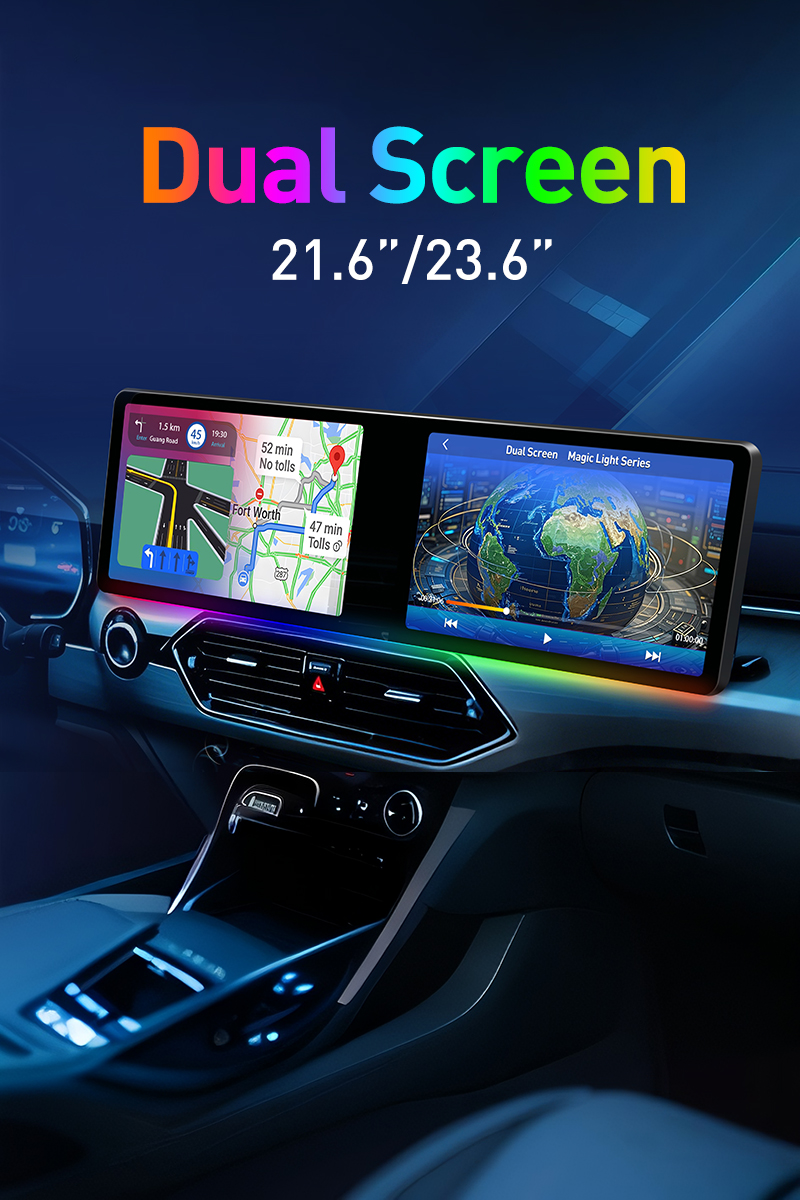
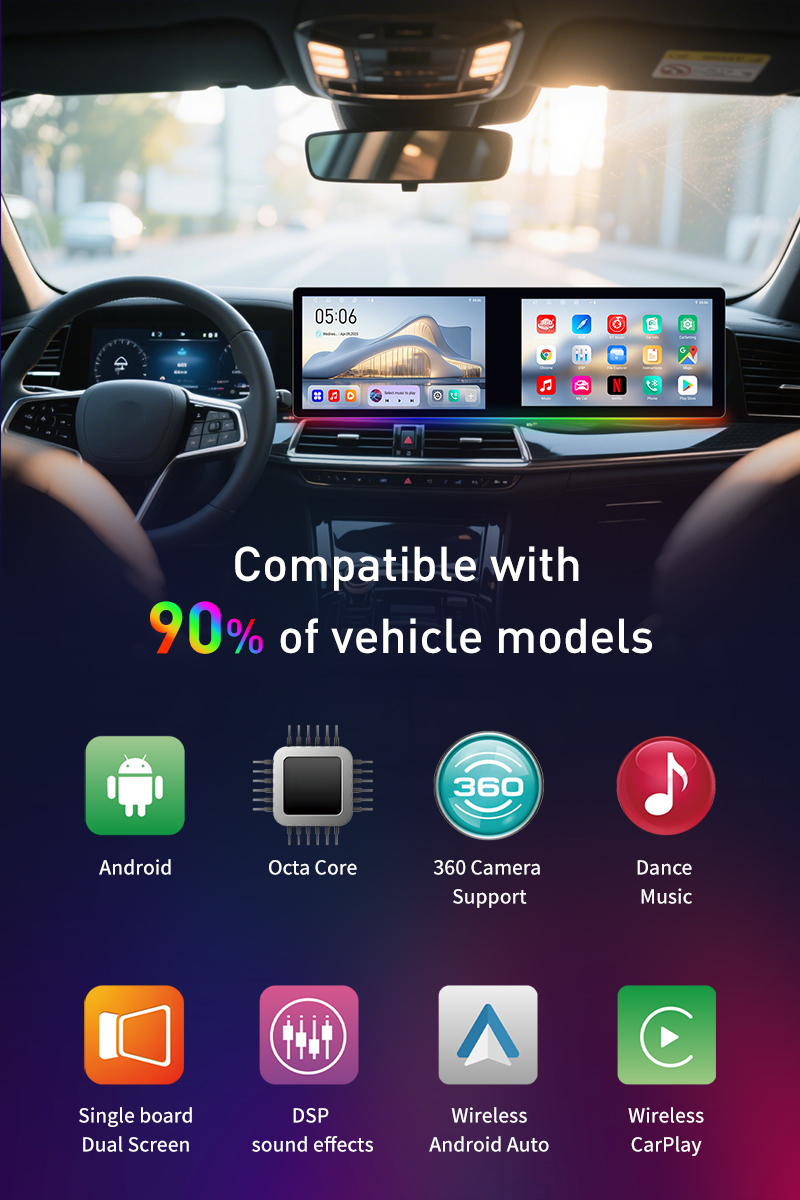
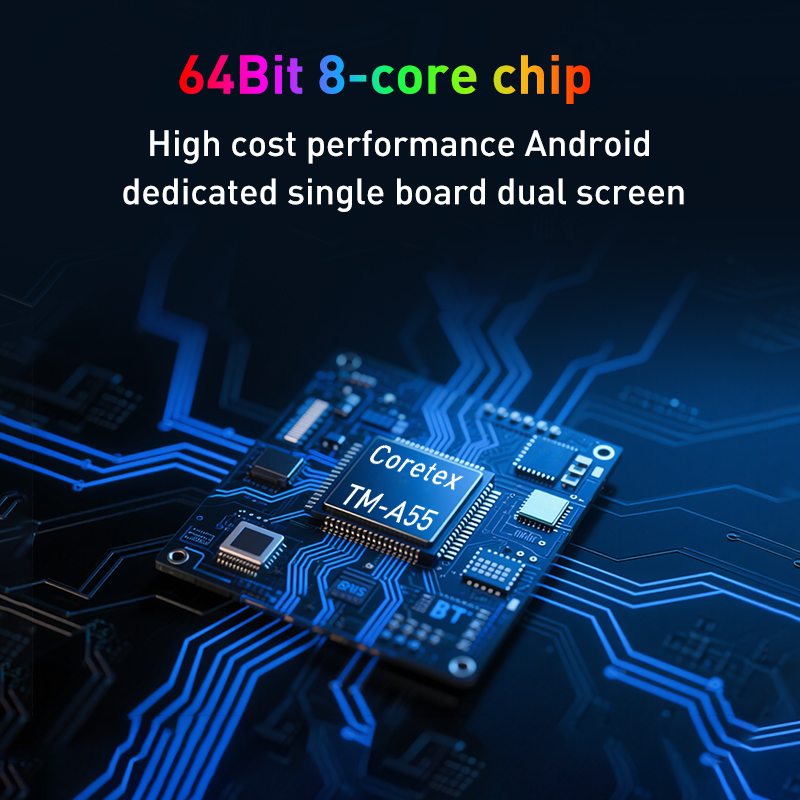
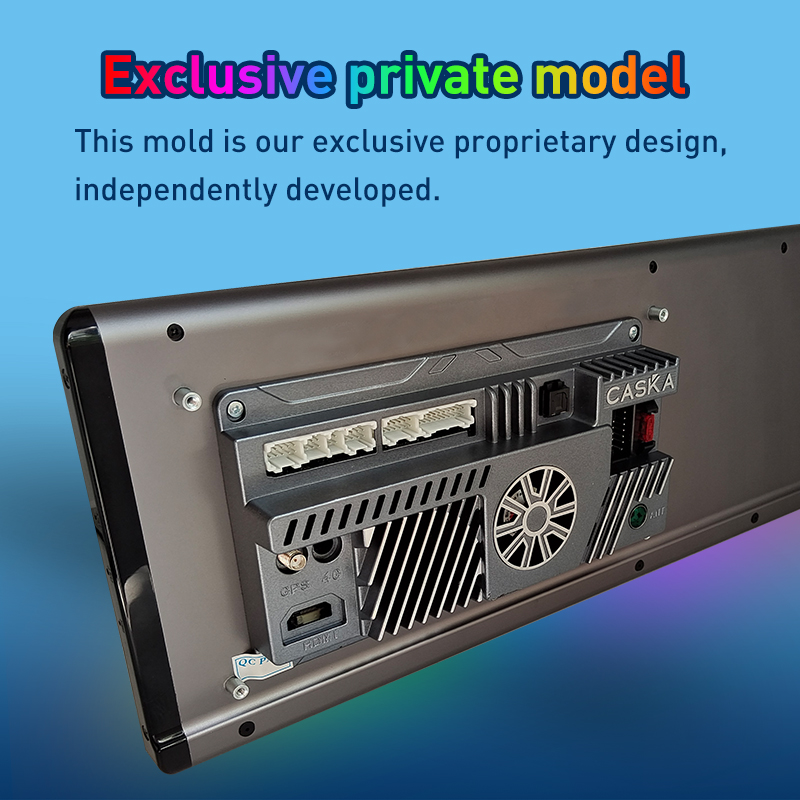
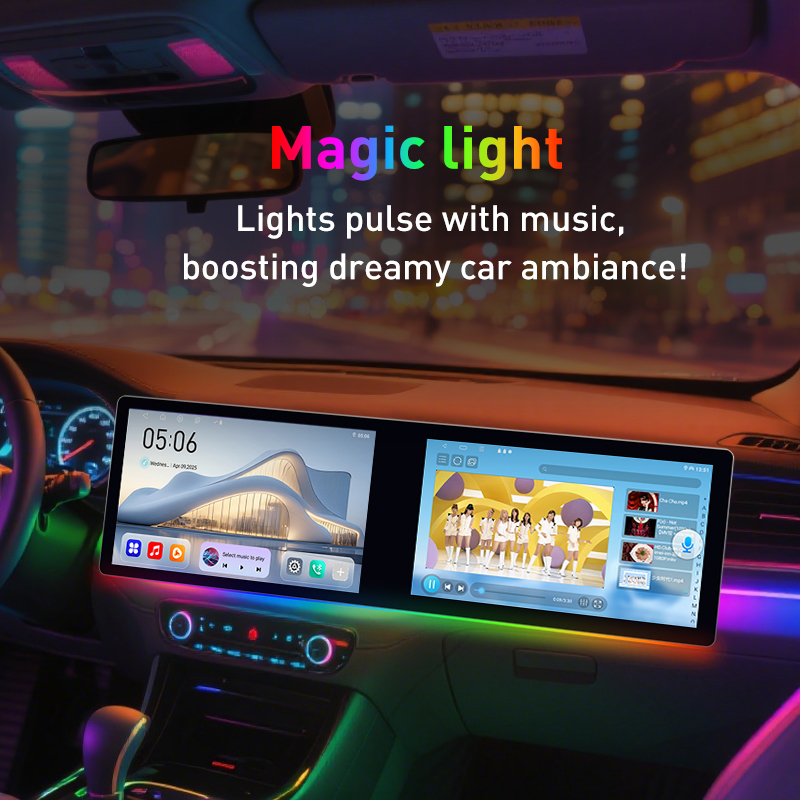
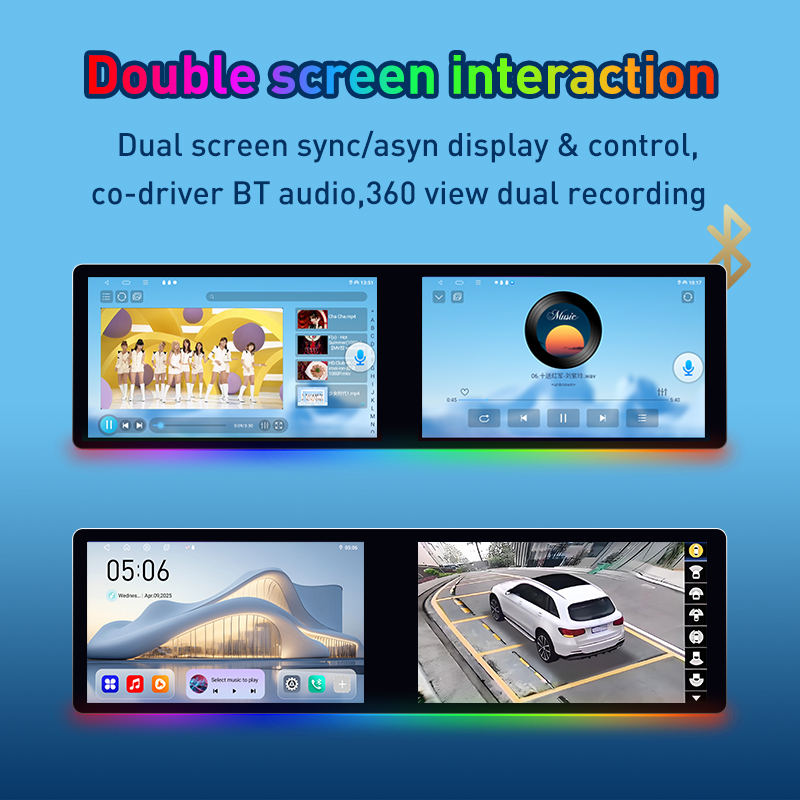
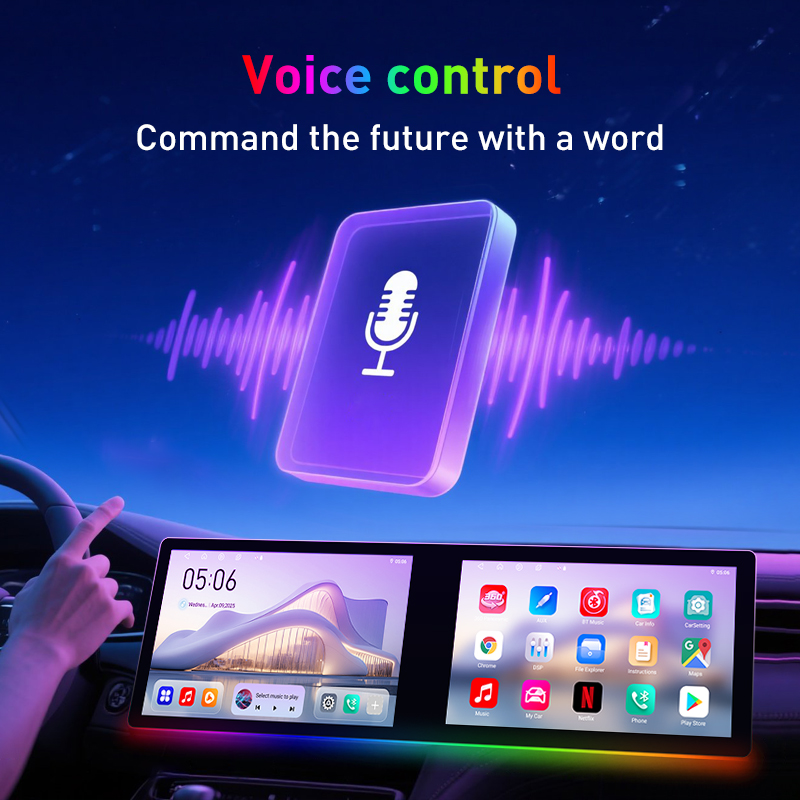
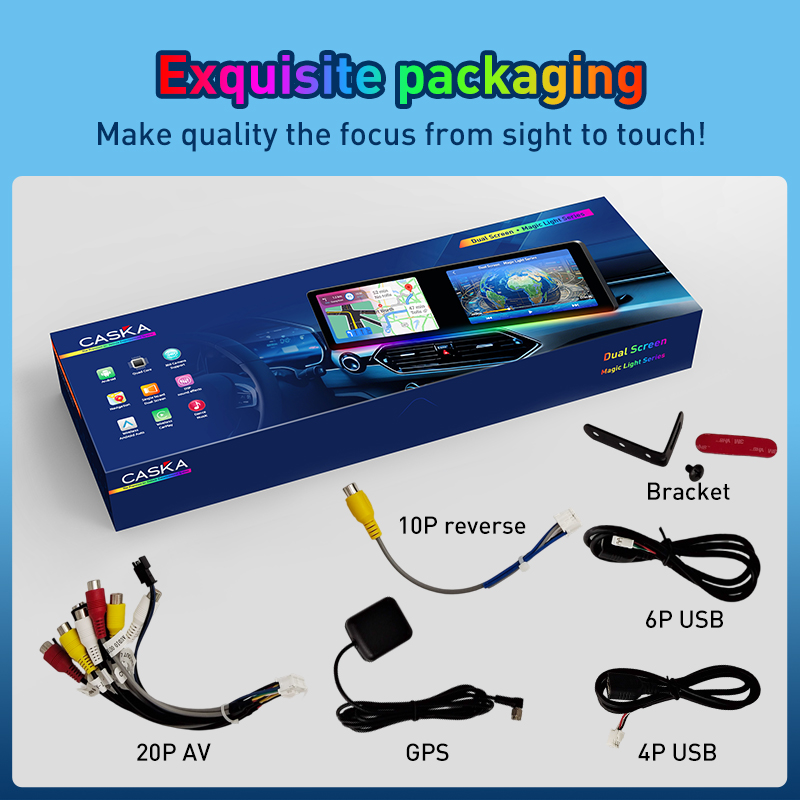
Caska Exclusive Dual Screen with Ambient Light
Main interface operation functions:
- Swipe with one finger on the main interface to switch wallpapers.
- Long press with one finger on the main interface to select wallpaper.
- In the application interface, use two fingers to swipe from the left screen to the right to transfer the application display to the right screen, and swipe from the left to transfer the application display to the left screen.
1&3 : Application flow button, press 1 to transfer the application screen on the left to the right screen, press 2 to transfer the application screen on the right screen to the left screen.
2&4 : Same screen button, press once to display the left and right screens on the same screen, press again to cancel the same screen display.
5: Secondary screen brightness adjustment.
6: Click this button to connect a Bluetooth headset and play the sound of the secondary screen through the Bluetooth headset, so that the main screen and the secondary screen will not affect each other.
7: Secondary screen off button. Click once to turn off the secondary screen of the dual screen. In the off state, click anywhere on the secondary screen to turn on the screen.
Ambient Light of Dual Screen Operation Instructions
Button function operation:
After turning on the dual screen, the ambient light will follow the button light of the host. It can be set to follow the power supply or follow the small light to control the lighting
M touch button: switch modes, Touch the M button to switch between single color (7 colors are default. Touch the cycle to jump to the next mode after one cycle. Colors can be added or deleted on the mobile phone APP), automatic, breathing, magic, opening scrolling, colorful jump, summer blue sea, winter love song, music rhythm, spectrum rhythm, dynamic rhythm; long press for 3 seconds to turn off the ambient light. Touch the M button in the off state to turn it on again
S touch button: adjust the brightness. The brightness can be adjusted between 0--100, with each level increasing by 10. After adjusting to 100, touch the button again to set the brightness to 0, and then repeat the cycle
Mobile APP operation:
Scan, download and install the APP. Android and Apple phones install the corresponding APP respectively

Some Pictuers to Introduce the Dual screen: